Start Panel
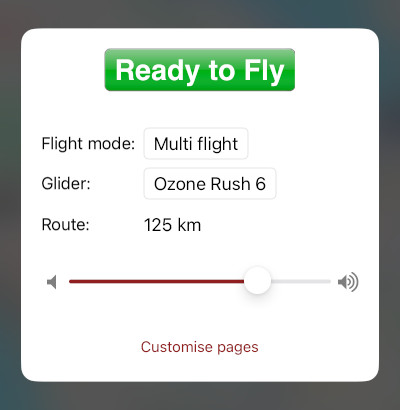
The Start Panel is your easy starting point for your journey into the sky. Adjust the most-used parameters to your liking, and then hit the “Ready to Fly” button to start your flight session.
The “Ready to Fly” button takes a number of preparatory measures to prepare the app for flight:
- Show the instrument dashboard
- Lock the screen orientation in place
- Switch the vario sound on (when configured as “While in flight mode”)
- Make sure you have a working connection to your Bluetooth vario device
- Start live tracking
- Make sure the app remains active when switched to the background, or when the screen is switched off
- Recalculate the optimal waypoint route starting from your current location
- Start monitoring your speed to detect a take-off
Pressing the button does not immediately start a flight. It is assumed you do your flight preparations first, possibly even go on a hike when in Hike & Fly mode. The instruments that are only applicable during flight are silent during that time. The app only switches to flying when a takeoff is detected. You'll need to move faster than 10 km/h for approximately 10 seconds to detect a takeoff.
A flight log is created for each flight, between takeoff and landing (with some pre- and postamble). Only in Hike & Fly mode is the log started immediately after pressing the “Ready to Go” button, and ended at the end of the flight sesson.
Flight Mode
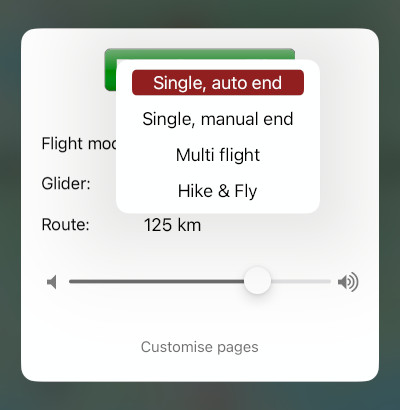
You can choose how you want Flyskyhy to treat your flights during a session:
- Single, auto end: your landing is automatically detected, and the app automatically ends the flight session after your flight. You'll need to start a new session before each flight.
- Single, manual end: you indicate that you have landed yourself, by pressing the Stop button. The flight session is ended after that.
- Multi flight: ideal when you are top-landing between flights. The app automatically detects your takeoffs and landings, and logs each flight separately. It continues the session after landing; you don't need to press “Ready to Fly” before each flight. After your flying day, press the Stop button to end the flight session.
- Hike & Fly: the same as Multi Flight, but the app logs the whole flight session as a single flight log, including the hiking parts.
Progress along a possible waypoint route you have set up, will continue until the end of the flight session. That is, for the Multi Flight and Hike & Fly modes,the waypoints that you have already reached will stay that way until you press the Stop button.
More Options
If you have configured multiple gliders in Settings→“Pilot and Glider”, then you can choose which glider you are flying with right from the start panel.
The length of the configured route is shown. This is the distance along the route from the first waypoint. Tapping on the distance will take you to the Route.
You also have the opportunity to change the sound volume of the iPhone. This affects the volume of the phone itself; it is an easy way to make sure it is set to the right level, without having to press the volume buttons of the phone while the sound is playing.
Note that it is now possible to configure the vario tones to play only during a flight (between takeoff and landing), in Settings→Vario→“Vario sound”.
At the bottom of the start panel, there is the possibility to customise your dashboard. This allows you to add and remove instruments, move them around and change their sizes.